Ever sent a boring email and wished you could instantly add emotion, personality, or even a little fun spark without overthinking it?
Sending messages through Microsoft Outlook has become more expressive than ever, and emojis are now a normal part of professional and personal communication.
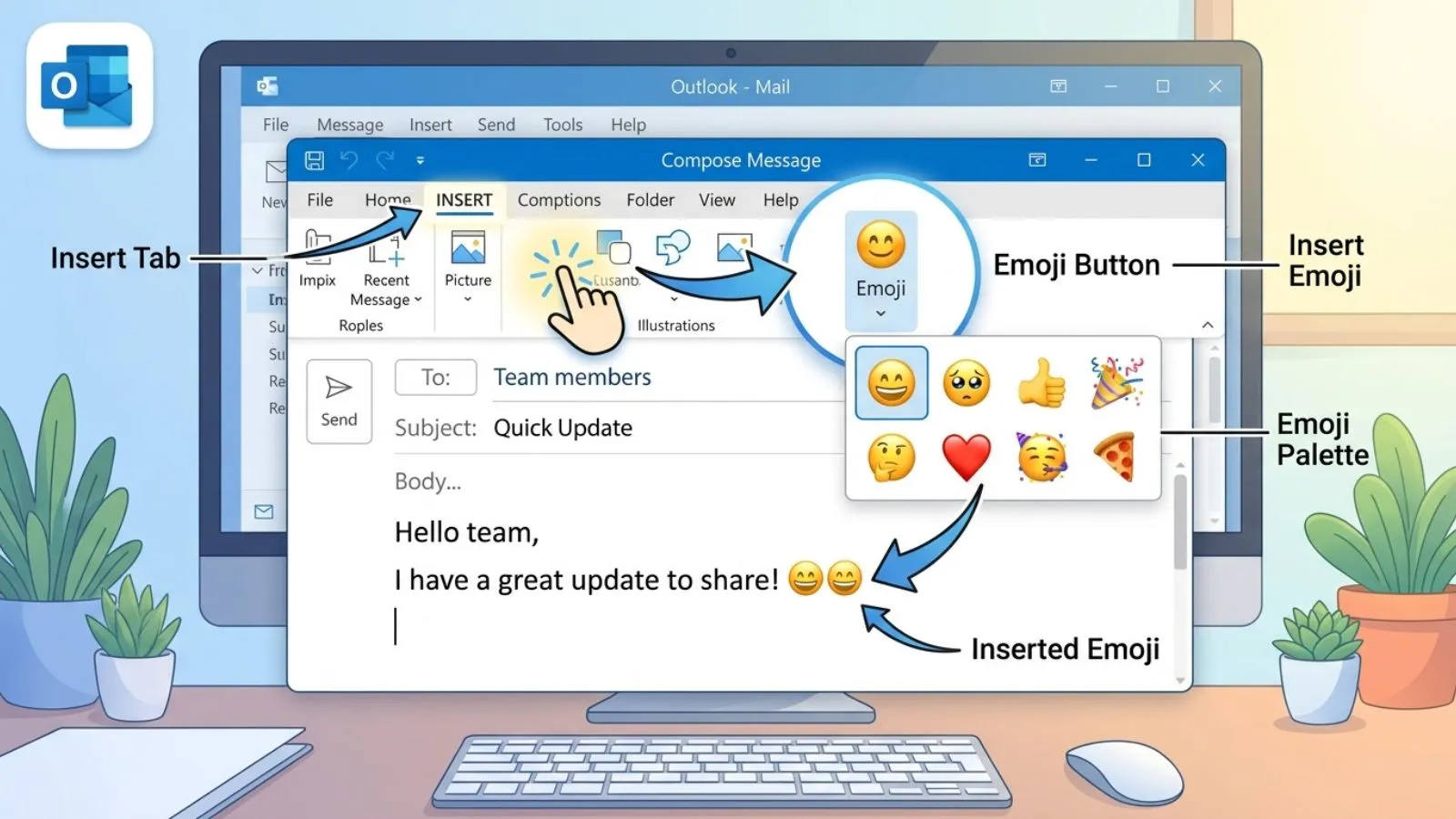
If you’re replying to a colleague, writing a friendly update, or adding tone to a formal message, knowing how to insert an emoji in Outlook can completely change how your emails feel.
The good news is it’s easier than most people think you don’t need special tools or plugins anymore add emoji to outlook email.
With a few simple shortcuts or built-in options, you can add emojis instantly while typing. In 2026, emoji use in emails is not just about fun it’s about clarity, emotional tone, and modern communication style.
This guide will show you everything: meaning, usage, copy-paste options, aesthetic ideas, and even troubleshooting when emojis don’t show correctly.
What does Insert An Emoji In Outlook mean?
“Insert an emoji in Outlook” simply means adding small digital icons (😊🚀📩) inside your email messages using Outlook’s built-in tools or keyboard shortcuts. These emojis help express tone, emotion, and intent that plain text often cannot.
For example:
- “Thank you” 😊 feels warm and friendly
- “Urgent update” 🚨 feels more serious
- “Great job” 🎉 feels celebratory
In modern communication, emojis act like emotional shortcuts. Instead of writing long explanations, a single emoji can instantly set the mood of your message.
How to use Insert An Emoji In Outlook emojis
There are multiple easy ways to insert emojis in Outlook:
✔️ Method 1: Keyboard Shortcut (Fastest)
- Windows: Press Windows + . (dot)
- Mac: Press Control + Command + Space
✔️ Method 2: Outlook Emoji Menu
- Open email
- Click message body
- Select emoji icon (if available)
✔️ Method 3: Copy & Paste
Just copy emojis from anywhere and paste them into your email.
Best emoji combinations for copy paste
Here are ready-to-use emoji combos you can copy instantly:
| Mood | Emoji Combo |
|---|---|
| Friendly | 😊👍✨ |
| Professional | 📩📊✅ |
| Celebration | 🎉🥳🎊 |
| Urgent | 🚨⚠️📢 |
| Supportive | ❤️🙏💪 |
| Work update | 📝📅📌 |
These combinations help you communicate faster without writing long sentences.
Aesthetic emoji ideas for social media
Emojis aren’t just for emails they’re also perfect for aesthetic messaging styles:
✨ Modern email vibe:
📩 Your update is ready
📊 Weekly report attached
💬 Let me know your thoughts
🌸 Friendly aesthetic:
Hi there 😊
Hope your day is going well 🌷
Sending positive vibes ✨
🚀 Trendy 2026 style:
Let’s go 🚀
Big updates coming 🔥
Stay tuned 👀
These styles are widely used across emails, LinkedIn posts, and messaging platforms.
Common problems and solutions
❌ Emoji not showing correctly
✔️ Solution: Update Outlook or system fonts
❌ Emojis appear as boxes
✔️ Solution: Use Unicode-supported emojis or newer Outlook version
❌ Shortcut not working
✔️ Solution: Enable emoji panel in Windows settings
❌ Emails look unprofessional
✔️ Solution: Use minimal emojis in formal emails (1–2 max)
Trending emoji usage in 2026
In 2026, emoji communication is more refined and context-driven:
- 📊 Business emails use clean emojis like ✅📌📈
- 💬 Remote teams use emojis for tone clarity
- 🚀 Tech updates use futuristic symbols
- 🌍 Global communication relies on universal emoji language
Even AI-driven communication tools now suggest emojis automatically based on message tone.
Emojis are no longer “just fun”—they are part of digital writing style evolution.
FAQs
1. How do I insert emojis in Outlook quickly?
Use Windows + . (dot) or copy-paste emojis directly.
2. Can I use emojis in professional emails?
Yes, but keep them minimal and context-appropriate.
3. Why are emojis not showing in Outlook?
Your Outlook version or system fonts may be outdated.
4. Do emojis work in all email clients?
Most modern clients support them, but older systems may not.
5. Are emojis safe for business communication?
Yes, when used moderately and appropriately.
Conclusion
Using emojis in Outlook has become a simple yet powerful way to improve how you communicate every day instead of plain, emotionless text, emojis help you add tone, clarity, and personality to your emails.
If you’re sending a quick update, replying to a colleague, or writing a professional message, the right emoji can make your intent much clearer and friendlier.
With tools like keyboard shortcuts, emoji panels, and copy-paste options, inserting emojis is now faster than ever.
However, balance is important. While emojis can make communication engaging, overusing them in formal emails may reduce professionalism.
The key is to use them strategically based on your audience and message type. As digital communication continues to evolve in 2026, emojis are becoming a universal language that bridges tone gaps in text-based conversations.
Mastering how to insert emojis in Outlook not only improves your writing style but also helps you connect better in both personal and professional settings.