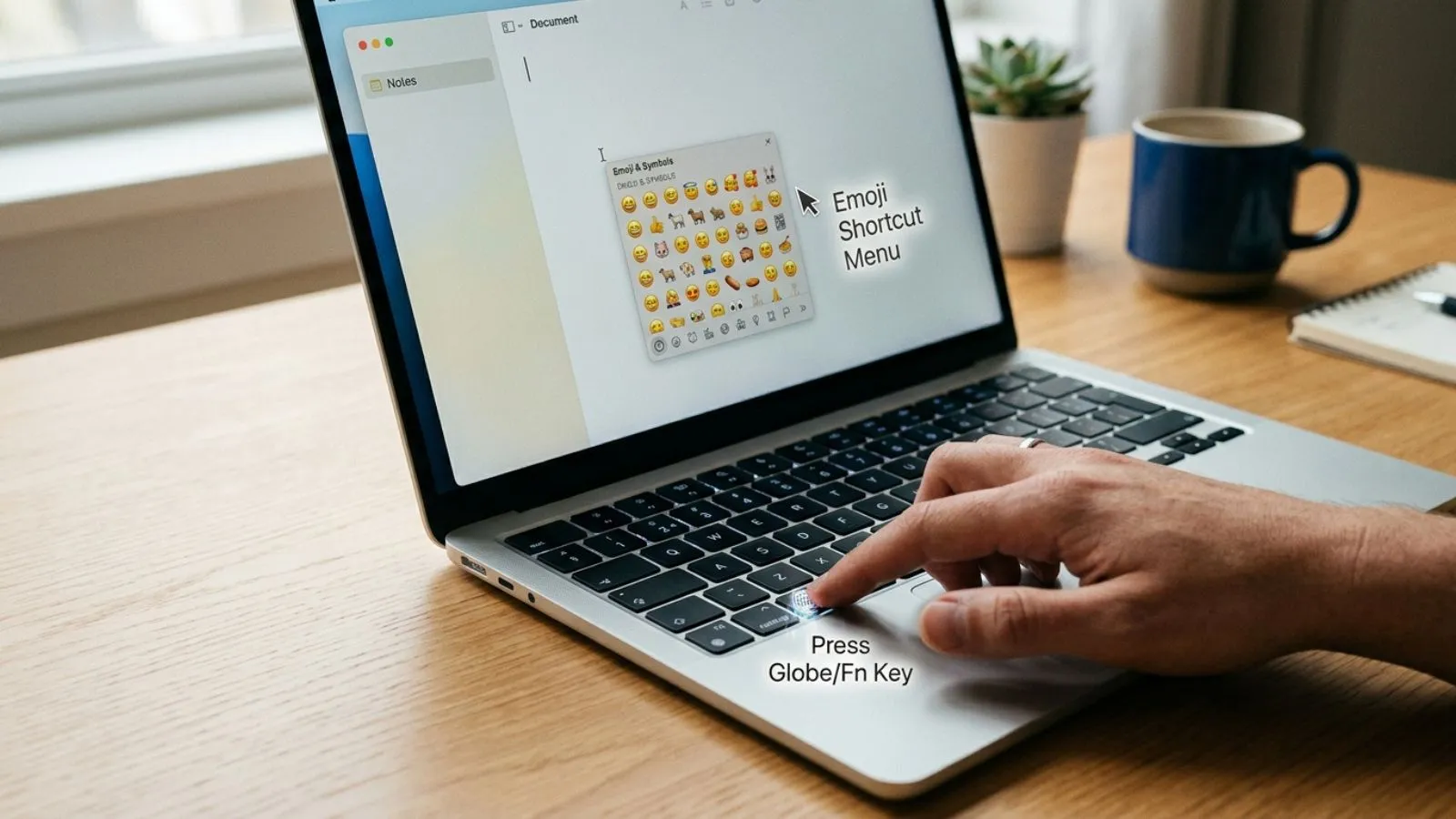
✨ One small shortcut can instantly unlock hundreds of emojis on your MacBook, making your chats, captions, and notes way more expressive, aesthetic, and fun.
Have you ever been typing on your Mac Book and suddenly wished you could drop the perfect emoji without breaking your flow emoji shortcut mac.
It usually happens when you’re replying fast on iMessage, writing a caption for Instagram, or even working on a document that feels too plain.
That tiny moment of searching for emojis can feel annoying, especially when your ideas are flowing quickly. The good news is that MacBook has a built-in emoji shortcut that most people either forget or never fully use mac emoji shortcut.
Once you learn it, your typing experience changes completely. Instead of clicking around menus, you can instantly access the full emoji panel and even special symbols.
In 2026, emoji usage has become more aesthetic, expressive, and even part of digital identity, especially on TikTok, Instagram, and WhatsApp. This guide will show you everything in a simple, human way.
What does Macbook Emoji Shortcut mean?
The MacBook emoji shortcut refers to a quick keyboard command that opens the emoji & symbols panel instantly. Instead of searching manually, you can press:
👉 Control (⌃) + Command (⌘) + Space
This shortcut opens a small emoji window where you can browse, search, and insert emojis directly into any app like Notes, Messages, Chrome, or Pages.
It’s basically your fast-access gateway to emotional expression while typing on macOS.
How to use Macbook Emoji Shortcut emojis
Using it is super simple:
- Press ⌃ Control + ⌘ Command + Space
- A popup emoji panel appears
- Search emoji by keyword (e.g., “love”, “fire”, “sad”)
- Click to insert instantly
💡 Example:
Typing “I’m happy” → press shortcut → add 😊 → done instantly
You can also use it for symbols like ©, ™, arrows, and currency signs.
Best emoji combinations for copy paste
Here are aesthetic and viral-ready combos:
- 💻🍎✨📱 (MacBook aesthetic vibe)
- 🔥💬😎 (cool conversation energy)
- 🌙💤😴 (night mode mood)
- 💡📚🧠 (study motivation)
- 💼📊🚀 (work success vibe)
- ❤️🔥😩💔 (emotional expression pack)
Copy and use anywhere for captions or bios.
Emoji Mac Shortcut ⌨️😊
The quickest emoji shortcut on Mac is:
Control (⌃) + Command (⌘) + Spacebar
Press these three keys together to open the Emoji & Symbols panel. Then search for an emoji and click it to insert.
Example:
Type heart → ❤️
Type fire → 🔥
Type money → 💰
Type smile → 😊
You can use this shortcut in most apps where you can type text, including messages, browsers, documents, and social media.
Aesthetic emoji ideas for social media
MacBook users love clean and aesthetic emoji styling in 2026:
- ✨ minimal bio style → “dreaming ✨🍃”
- tech aesthetic → “coding 💻🧠⚡”
- soft girl vibe → “cloudy days ☁️🫧💗”
- dark aesthetic → “midnight thoughts 🌙🖤”
- productivity mood → “grind mode 📈🔥”
These combinations are trending heavily on Instagram Reels and TikTok captions.
Emoji Keyboard Shortcuts Mac ⌨️😊
On a Mac, the quickest emoji shortcut is:
Control + Command (⌃ + ⌘) + Space
Press these keys together to open the Emoji & Symbols viewer. You can then search for an emoji and click it to insert it.
Useful Mac Emoji Shortcuts
| Shortcut | What it does |
|---|---|
| Control + Command + Space | Open Emoji & Symbols |
| Fn/Globe + E | Open Emoji & Symbols on supported Macs |
| Control + Command + Space → Search | Find a specific emoji |
| Double-click emoji | Insert it into the active text field |
| Esc | Close the emoji picker |
How to Use Emoji Keyboard Shortcuts
- Open any app where you can type.
- Click inside the text field.
- Press ⌃ Control + ⌘ Command + Space.
- Search for an emoji, such as “heart” or “fire.”
- Click the emoji to insert it.
Tip: If your Mac has a Globe/Fn key, you can also use Fn/Globe + E for quick emoji access, depending on your keyboard settings and macOS version.
😊 Mac Emoji Shortcut
Control (⌃) + Command (⌘) + Spacebar
This opens the Emoji & Symbols panel. You can then search for an emoji and click it to insert it.
Example:
Type heart → ❤️
Type fire → 🔥
Type money → 💰
Type smile → 😊
Emoji Keyboard Shortcut on Mac
The quickest way to open the emoji keyboard on a Mac is:
Control (⌃) + Command (⌘) + Space
This opens the Emoji & Symbols panel, where you can search and insert emojis such as ❤️ 😂 🔥 👍 directly into your text.
Alternative: Press Fn/Globe 🌐 + E on supported Mac keyboards.
Common Mac Emoji Shortcuts
- 😊 → Press ⌃ Control + ⌘ Command + Space
- ❤️ → Open the emoji panel and search heart
- 🔥 → Search fire
- 😂 → Search laughing
- 👍 → Search thumbs up
Common problems and solutions
❌ Shortcut not working
✔ Try restarting your Mac or checking keyboard settings
❌ Emoji panel not appearing
✔ Make sure macOS is updated
❌ Emojis look different on other devices
✔ iPhone, Windows, and Android all render emojis slightly differently
❌ Can’t find specific emoji
✔ Use search bar inside emoji panel instead of scrolling
Trending emoji usage in 2026
In 2026, emoji usage has become more expressive and aesthetic-focused:
- Minimal emoji captions are trending (✨💻 only style)
- “Mood-based emojis” are used in bios
- Aesthetic storytelling using 3–5 emojis max
- Clean tech + lifestyle emoji mixes are viral
- MacBook users prefer shortcut-based fast insertion for productivity
Creators now treat emojis like visual branding, not just decoration.
OSX Emoji Shortcut ⌨️
On macOS, the quickest emoji shortcut is:
Control + Command (⌘) + Space
This opens the Emoji & Symbols panel, where you can search and insert emojis such as ❤️, 😂, 🔥, 👍, and ✨.
Quick Steps
- Place your cursor where you want the emoji.
- Press Control + Command + Space.
- Search for an emoji by name.
- Click the emoji to insert it.
Bonus: On newer Macs, you can also use the Fn/Globe key to open the emoji picker, depending on your keyboard settings.
Emoji Shortcut Quick Reference Table
| Action | Shortcut |
|---|---|
| Open Emoji Panel | ⌃ + ⌘ + Space |
| Search Emoji | Type keyword |
| Insert Emoji | Click or Enter |
| Close Panel | ESC key |
FAQs
1. What is the MacBook emoji shortcut?
It is ⌃ Control + ⌘ Command + Space to open emojis instantly.
2. Does it work on all MacBooks?
Yes, it works on almost all macOS versions.
3. Can I search emojis with it?
Yes, just type a keyword inside the panel.
4. Why is my shortcut not working?
Check keyboard settings or update mac OS.
5. Can I use it in all apps?
Yes, it works in Notes, Messages, browsers, and most apps.
Conclusion
The MacBook emoji shortcut is one of those small features that completely changes how you type and express yourself online.
Instead of wasting time searching through menus or copying emojis from random websites, this simple shortcut gives you instant access to hundreds of emojis, symbols, and expressive icons os x emoji shortcut.
If you’re chatting with friends, writing emails, or creating aesthetic captions for Instagram or TikTok, it helps you stay fast, creative, and visually expressive.
In 2026, digital communication is more visual than ever, and emojis play a huge role in how emotions and moods are shared. Learning this shortcut not only saves time but also improves your overall typing flow on macOS.
Once you get used to it, you’ll find yourself using emojis more naturally in everyday writing. It becomes second nature, especially for students, creators, and professionals who rely on quick communication. Simply put, this tiny shortcut makes your MacBook experience smoother, faster, and way more fun.